Register MCP Servers in Visual Builder
Copy page
Create MCP servers that agents can use to access external services.
MCP servers provide tools that your agents can use to interact with external APIs and services. Once created, these servers are automatically synced to discover available tools, which can then be added to your agents.
To use MCP servers with your agents, you can:
- Connect to Native MCP servers from providers like Atlassian, Linear, Notion, and more
- Use Composio's platform for access to 10,000+ out-of-box MCP servers
- Use Gram to easily convert existing OpenAPI APIs into MCP Servers
- Build Custom MCP servers for totally custom MCP servers
See the MCP Servers tutorial for details on all recommended approaches.
Once you have access to an MCP server, you can register it with your agents.
Register an MCP server
-
Go to the MCP Servers tab in the left sidebar, then select "New MCP server".
-
Fill in the required server details:
| Field | Description |
|---|---|
Name | Server name |
URL | Endpoint URL of a remote MCP server |
Transport Type | Streamable HTTP or SSE protocol |
- Optionally, configure additional settings:
| Field | Description |
|---|---|
Image URL | Custom icon for the server (URL or base64 data URL) |
Custom Prompt | Additional instructions for agents on how to use tools from this server. This context is provided to agents alongside each tool from this server. |
Credential | Authentication credential if the server requires it. Choose from existing credentials, or leave blank and add a credential later. For OAuth 2.1/PKCE flows, leave blank and use the Click to Login button in the server details page to authenticate |
- Click "Create" to create the server.
Viewing server details
After creating an MCP server, you can view its details:
- Click on your created MCP server from the list
- The server details page shows:
- Server information - URL, transport type, creation date, etc.
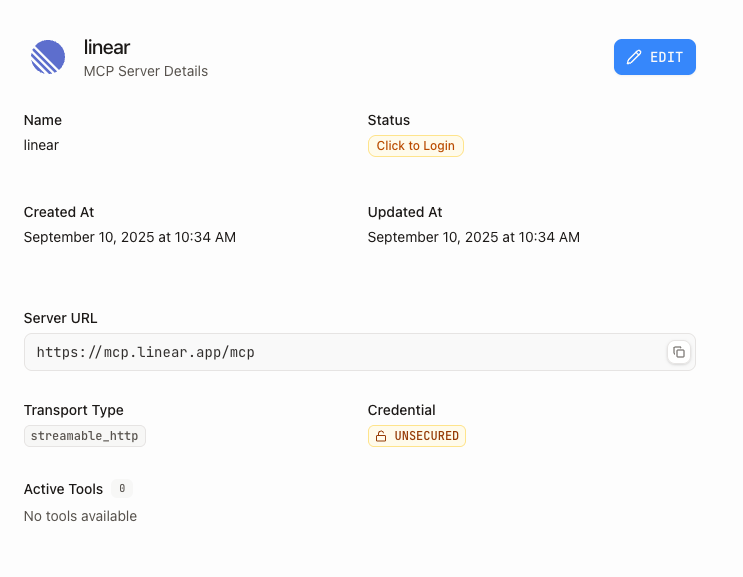
- Status - healthy, unhealthy, unknown, disabled, or shows a "Click to Login" button if OAuth 2.1/PKCE flow is detected
- Active tools - Currently enabled tools for the server
- Available tools - All tools discovered from the server with descriptions and parameters
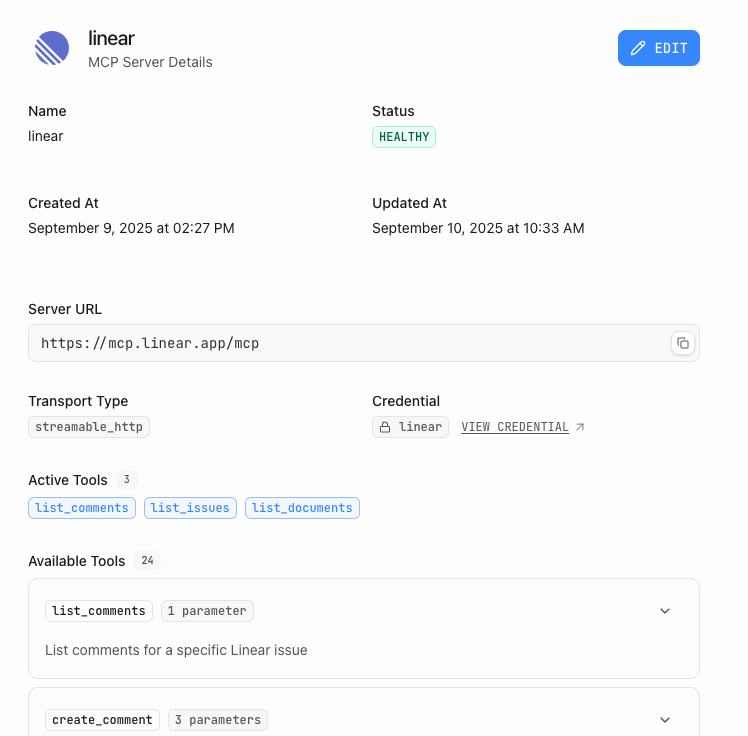
Tool discovery requires a successful connection to the MCP server. If the server shows "Click to Login" in the status, use the button to initiate the authentication process.
Editing server settings
To modify an existing MCP server:
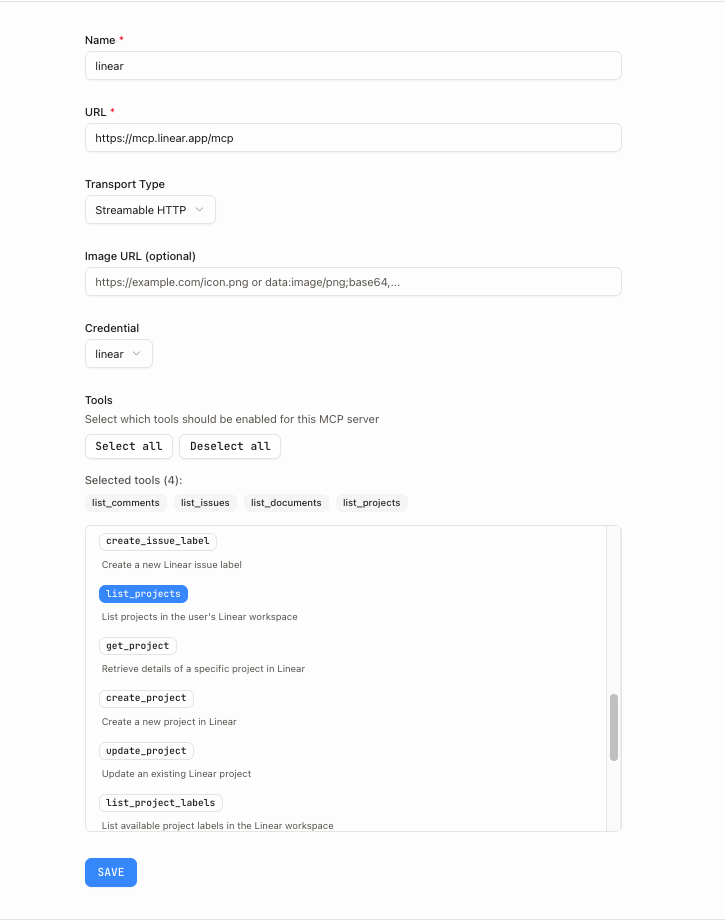
- From the server details page, click the Edit button
- The edit form shows all the same fields as creation, plus the ability to update Active Tools. By default, all available tools are enabled. You can select specific tools to enable.
- Click Save to apply changes
Tool overrides
For each enabled tool, you can configure overrides to customize how the tool appears to agents:
- In the Active Tools section of the edit form, click the Override badge next to any tool
- Configure the following override options:
| Field | Description |
|---|---|
Display Name | Custom name for the tool that agents will see (overrides the original tool name) |
Description | Custom description that explains what the tool does (overrides the original description) |
Schema | Simplified parameter schema using visual builder or JSON. Useful for hiding complex parameters or adding defaults. |
- Click Save Override to apply the customizations
Tool overrides help simplify complex tools for agents by providing clearer names, better descriptions, and simplified parameter schemas. The original tool functionality remains unchanged.
Authentication setup
If your MCP server requires authentication, you have two options: either use the "Click to Login" button to authenticate or manually create a credential to use with the MCP server.
OAuth 2.1/PKCE authentication
- Create your MCP server without selecting a credential
- Go to the server details page and click the "Click to Login" button
- Complete the OAuth authentication flow in your browser
- The credential will be automatically created and saved to your Nango Store (follow steps to setup Nango). If Nango is not set up, the framework will use the Keychain Store if available.
1-click Install MCP servers
Here's an example list of popular service-maintained MCP Servers that support 1-click install via the OAuth 2.1/PKCE authentication flow.
To add them to your project:
- navigate to MCP Servers in the Inkeep Visual Builder.
- Click on New MCP Server
- Choose from the preset list under Popular Services or register any under Custom Server
When you register the server, an authentication pop-up will appear and allow you to sign in. Your credentials will automatically be saved to your Nango Store or Keychain credential store.
Manual credential setup
- Create a credential in the Credentials section. The credential can be API Key, Bearer Token, Basic, OAuth 2.0, etc.
- When creating or editing your MCP server, select the credential from the dropdown
- The credential will be automatically used when connecting to the server
Finding more remote MCP servers
For additional remote MCP servers you can connect to:
- Anthropic's Remote MCP Servers - Official documentation with curated third-party remote servers
- Awesome Remote MCP Servers - Community-curated list of high-quality remote MCP servers
Using stdio-based MCP servers
The Visual Builder requires Streamable HTTP or SSE transport to connect to MCP servers. If you have an MCP server that runs in stdio mode locally, you can use the following setup to connect to it.
Setup outline
- Deploy your stdio -> Streamable HTTP/SSE bridge (locally or cloud)
- Set environment variables (API tokens, etc.)
- Verify it's running (i.e. on port
4000,4001, etc.) - Add to Visual Builder:
- URL:
http://localhost:4000/mcp(or your server URL) - Transport Type:
Streamable HTTPorSSE
- URL:
Example using mcp-proxy
- Get familiar with mcp-proxy - proxy for MCP servers that use stdio transport
- Supabase MCP server
- Run the server locally:
- Add to Visual Builder with the following settings:
- URL:
http://localhost:4444/mcp - Transport Type:
Streamable HTTP
- URL:
Adding servers to agents
Once you have created an MCP server, you can add it to your agents:
- Go to the Sub Agents page
- Drag and drop an MCP server into your agent
- Connect the MCP server to a Sub Agent by dragging from the server's connector to the Sub Agent
- Your Sub Agent can now use the tools provided by that MCP server
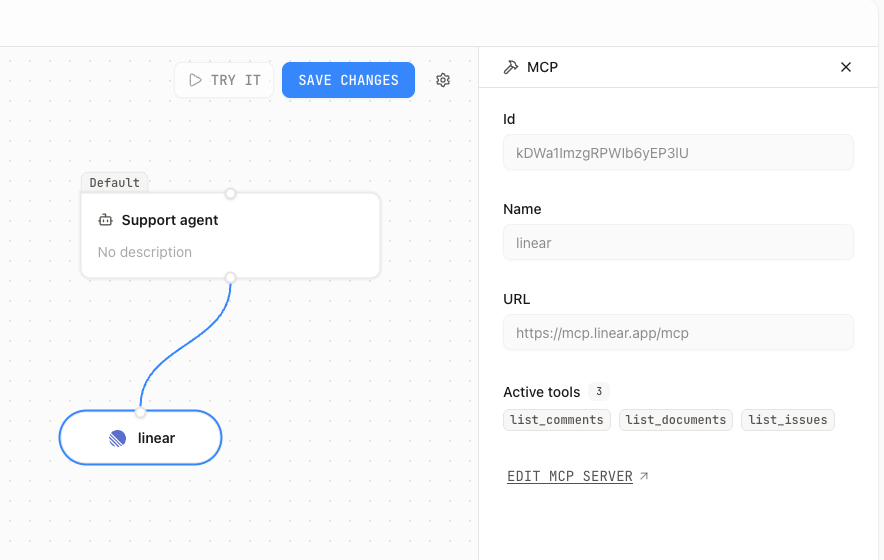
For detailed instructions on working with MCP servers in agents, see the Sub Agents page.